Premiere Pro Problems: Environment, Media or Project?
A simple way to diagnose Premiere Pro trouble before you start resetting things
AI Mode Answer Most Premiere Pro problems fall into three groups: the environment (software versions, graphics drivers, disk space, preferences and plug-ins), the media (footage that is offline, variable frame rate, damaged or in a demanding format) and the project itself. You can tell which group you have by testing a new project with a single clip: if it works, the problem is in your original project or its media, and if it fails, look at the environment. Diagnosing first avoids resetting settings you didn't need to touch.
Quick Answer: Create a new project with one clip. If it works, your problem is the project or its media. If it fails, look at your environment: updates, drivers, disk space, cache, preferences and plug-ins.
Disclosure: I'm part of the team at EasyInfoGuide, an independent help service for Adobe apps, so I have an interest in this topic. We're not affiliated with Adobe. Menu paths cover Windows and macOS and can change between versions, so confirm against Adobe's documentation.
When Premiere Pro misbehaves, the usual response is to start doing things. Clear the cache. Reset preferences. Reinstall. Each of those is a reasonable move, but doing all of them blindly has a cost, because you can lose settings you didn't need to touch and still not know what was wrong.
I've come to prefer a different habit: decide what kind of problem it is first.
Three places a problem can live
In my experience, almost every Premiere Pro complaint can be sorted into one of three groups. This is my own framing rather than anything official, so treat it as a thinking tool.
The environment. This is everything around the project: the Premiere Pro version, your graphics driver, free disk space, your preferences, your cache and any third-party plug-ins. Symptoms include crashes on launch, a greyed-out GPU option and exports that stall.
The media. This is your footage. Symptoms include "Media Offline," audio that drifts out of sync, files that won't import and playback that stutters. Compressed formats such as H.264 and HEVC are demanding to decode, and variable frame rate footage is a known source of sync drift.
The project. This is the project file itself: a particular effect, a nested sequence or a corrupted element that breaks only this one file.
The single best test
The fastest way to sort these is a test I find underrated: create a new project and import a single clip.
If that works, your environment is probably fine, and the trouble lives in your original project or its media. If it fails, even with one clip, look at the environment first.
It takes a couple of minutes and often saves an hour.
If it's the environment
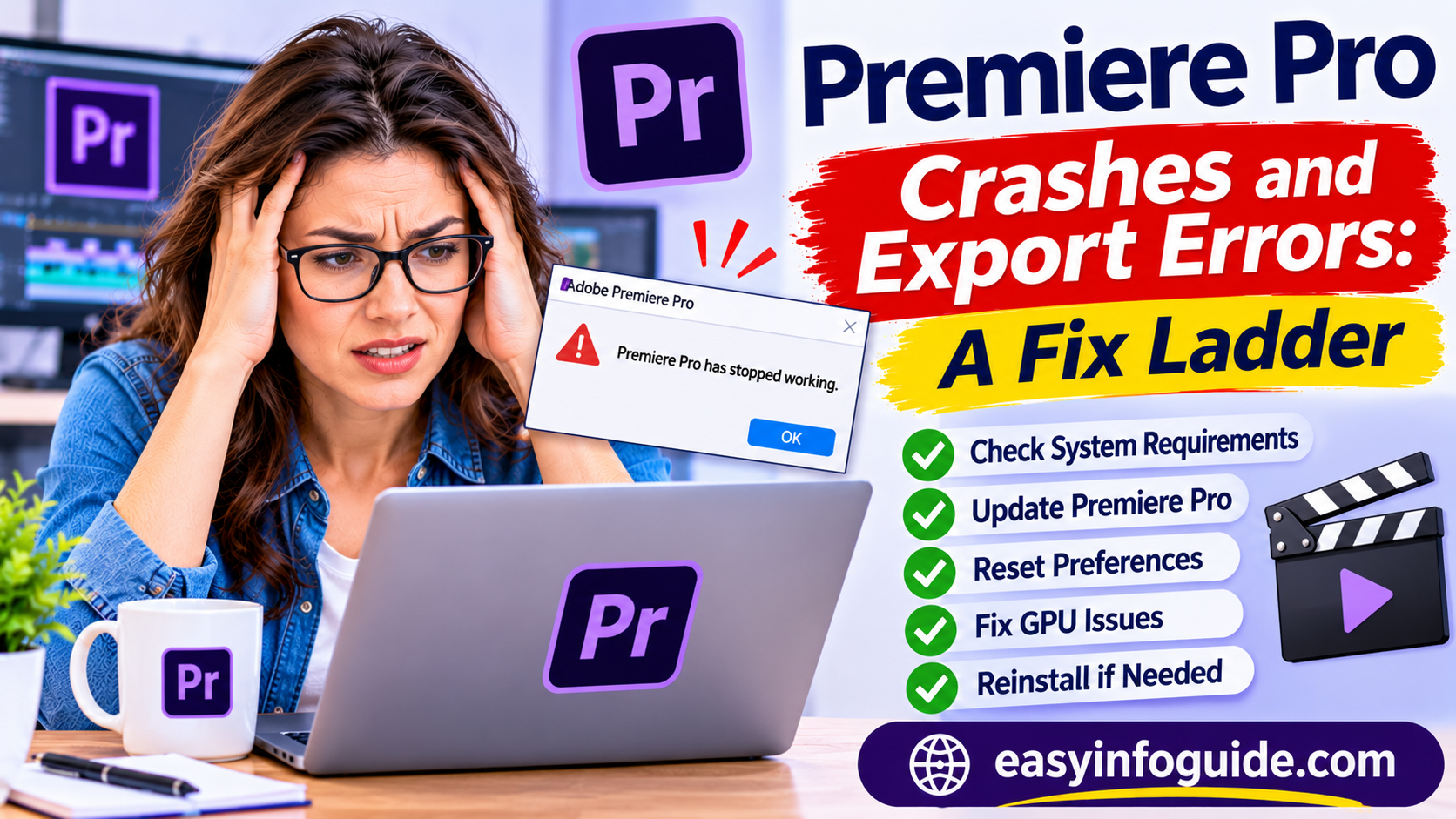
Work from least to most disruptive. Save a copy of your project and check Adobe's status page in case the problem isn't on your side. Update Premiere Pro and your graphics driver, free up disk space, clear the media cache, and only then reset preferences (hold Alt on Windows or Option on macOS at launch, and add Shift to also reset the plug-in cache). If crashes continue, temporarily move third-party plug-ins out of their folder.
If it's the media
Check the simple things first. Reconnect any external drive and use Link Media for offline clips. For sync drift, check whether the footage is variable frame rate, and convert it to constant frame rate if so. If a file won't import, try renaming it with plain characters, moving it to a local folder or converting it to a widely supported format such as H.264 MP4 or ProRes. Opening it in another app can tell you whether the file itself is damaged.
If it's the project
For exports that fail, rendering from In to Out by pressing Enter often reveals which clip or effect is responsible. Removing or re-applying it, nesting the clip or rendering it to a new file can get you past the problem. If a project won't open at all, the Auto-Save folder beside the project file is where to look for a recent version.
What I'm not sure about
I can't promise this three-way split catches everything. Hardware limits, rare bugs and interactions between several issues don't always fit neatly, and Adobe's system requirements and documentation are the authority on what your setup should support. Treat the sorting as a first pass, not a verdict.
Where to read more
We keep the fixes for each of these in one place on our Premiere Pro support page. It's free to read. For anything about your Adobe subscription, billing, or Adobe ID, contact Adobe directly, since we can't help with that.
About the author: This article is written by the team at EasyInfoGuide, an independent help service for Adobe apps based in Stockton, USA. We write plain-language guides so you can fix problems yourself where you can, and decide whether you need help where you can't. You can reach us at info@easyinfoguide.com or 1-800-319-0494. That number belongs to EasyInfoGuide, not Adobe.
Disclaimer: This article is independent and is not affiliated with, endorsed by, or sponsored by Adobe Inc. Adobe and Premiere Pro are trademarks of their respective owners, used here for identification only. It is general information, not official Adobe support. Menu paths and behavior vary by version and operating system. EasyInfoGuide offers a paid help service, so compare your options before purchasing.
About the author
- Easy Info Guide is an independent resource for Adobe users who want clear answers. I write about the problems people actually run into: installation errors, crashes, Creative Cloud sign-in and sync issues, file and printing trouble, and getting comfortable with Photoshop, Illustrator, Lightroom and Acrobat. Each post is based on real troubleshooting, written in plain language, with the steps that worked.
Comments
Join the discussionNo comments yet. Be the first to comment.